How to Turn a Handwritten Note into a Realistic Photo with GPT Image 2.5
How to Turn a Handwritten Note into a Realistic Photo with GPT Image 2.5
A flat image of handwriting on paper is useful. A photo of that note lying on a wooden desk next to a cup of coffee is far more engaging — it's what stops the scroll on Instagram, Pinterest, and Xiaohongshu, and it makes product mockups and journal posts feel real.
You don't need a camera or a physical notebook to get that shot. This guide combines two tools:
- Our text to handwriting generator to create the note itself
- GPT Image 2.5 image-to-image editing to place it in a realistic scene
Why Two Tools Instead of One?
AI image models can draw handwriting, but they are guessing at every letter. Long messages often come out with misspellings or uneven characters, and you can't easily fix a single word.
A handwriting generator renders exactly the text you typed, letter for letter. GPT Image 2.5 is then good at the part it's built for: understanding a photo you upload and changing its surroundings — lighting, perspective, props — while keeping the main subject consistent.
So: handwriting tool for the words, AI image model for the scene.
Step 1: Create the Handwritten Note
- Open the text to handwriting converter.
- Type or paste your text — a quote, a to-do list, a short letter, study notes.
- Pick a handwriting font. Casual pen styles look most natural in photos.
- Choose lined or plain paper — real-looking paper textures blend into scenes better than decorative backgrounds.
- Use dark blue or black ink and a medium stroke so the writing stays readable after editing.
- Download the image.
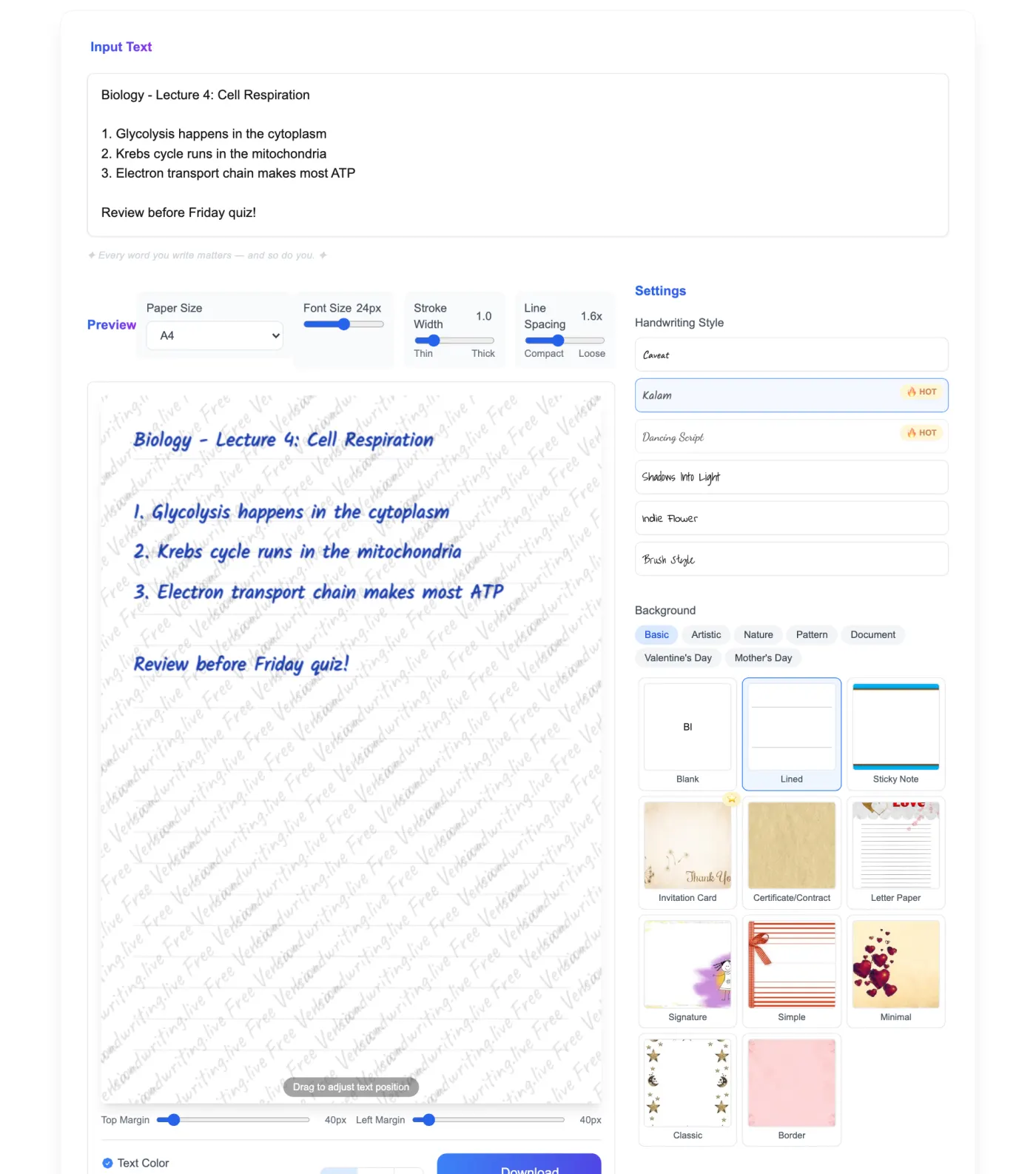
Tip: Keep it short. 3–10 lines photographs well. A full page becomes unreadable once it's shown at an angle in a scene.
Looking for content? Our love letter, thank-you letter, and birthday letter generators include templates you can start from.
Step 2: Upload It to GPT Image 2.5
Open GPT Image 2.5 image-to-image and upload your handwriting image as the reference.
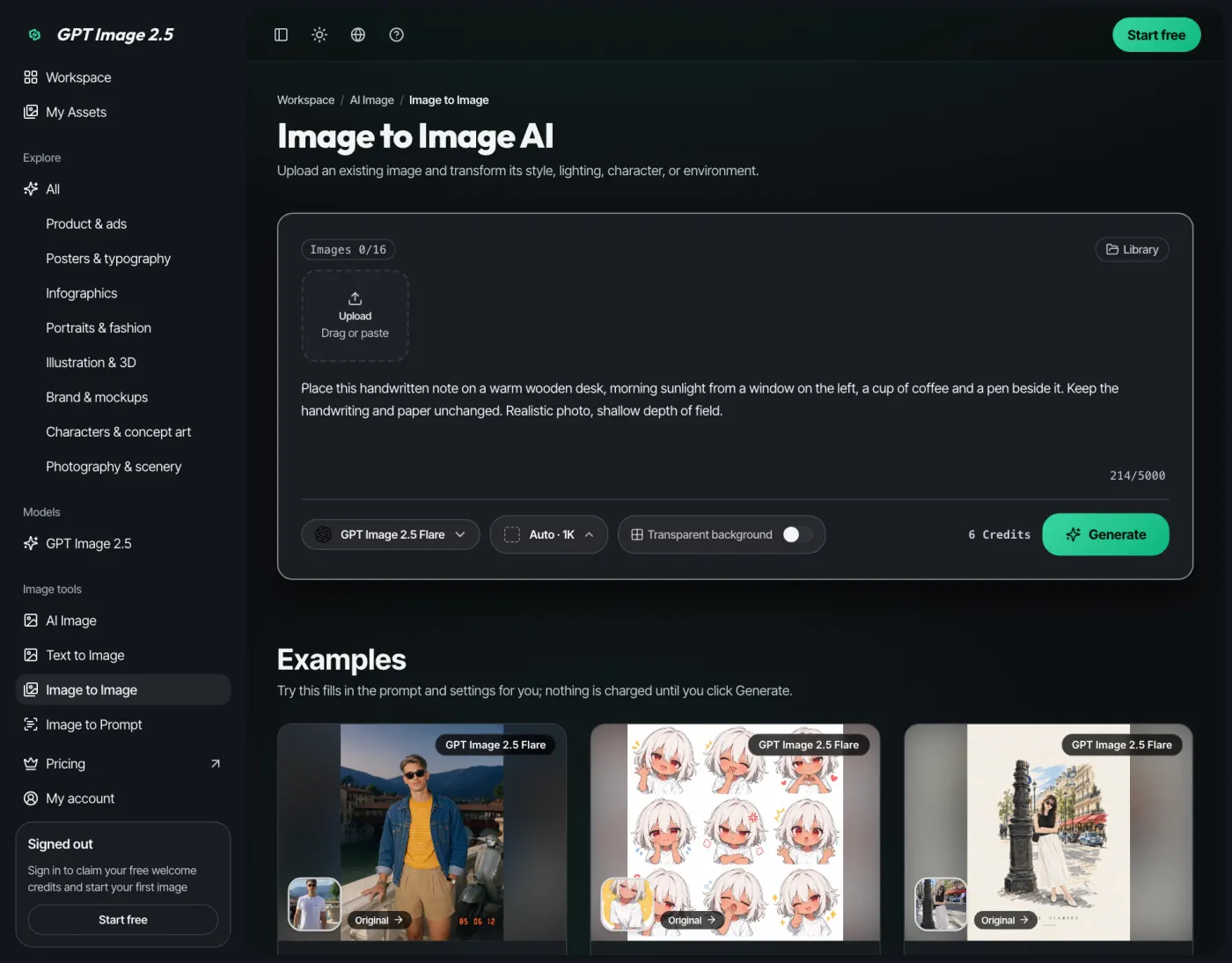
GPT Image 2.5 offers two modes — Flare and Sunburst. Try both on the same prompt and keep the one that preserves your handwriting better; the site explains which tasks each one suits.
Step 3: Describe the Scene
Tell the model to keep the note and its text exactly as is, and change only the surroundings. Some prompts that work well:
Cozy desk
Place this handwritten note on a warm wooden desk, morning sunlight from a window on the left, a cup of coffee and a pen beside it. Keep the handwriting and paper unchanged. Realistic photo, shallow depth of field.
Journal spread
Make this page part of an open leather journal on a linen tablecloth, with dried flowers and washi tape around the edges. Keep all handwritten text identical. Soft natural light.
Corkboard
Pin this note to a cork board with a red push pin, surrounded by polaroid photos and sticky notes. Keep the writing sharp and readable. Realistic indoor lighting.
In someone's hand
Show this note held in a hand outdoors at golden hour, blurred park background. Do not change the handwritten words.
Step 4: Refine
- Text got changed? Add "do not alter, redraw, or translate the handwritten text" and try again, or switch between Flare and Sunburst.
- Note too small? Ask for "a close-up, the note fills most of the frame".
- Too perfect? Add "slightly creased paper, subtle shadows" for a more natural look.
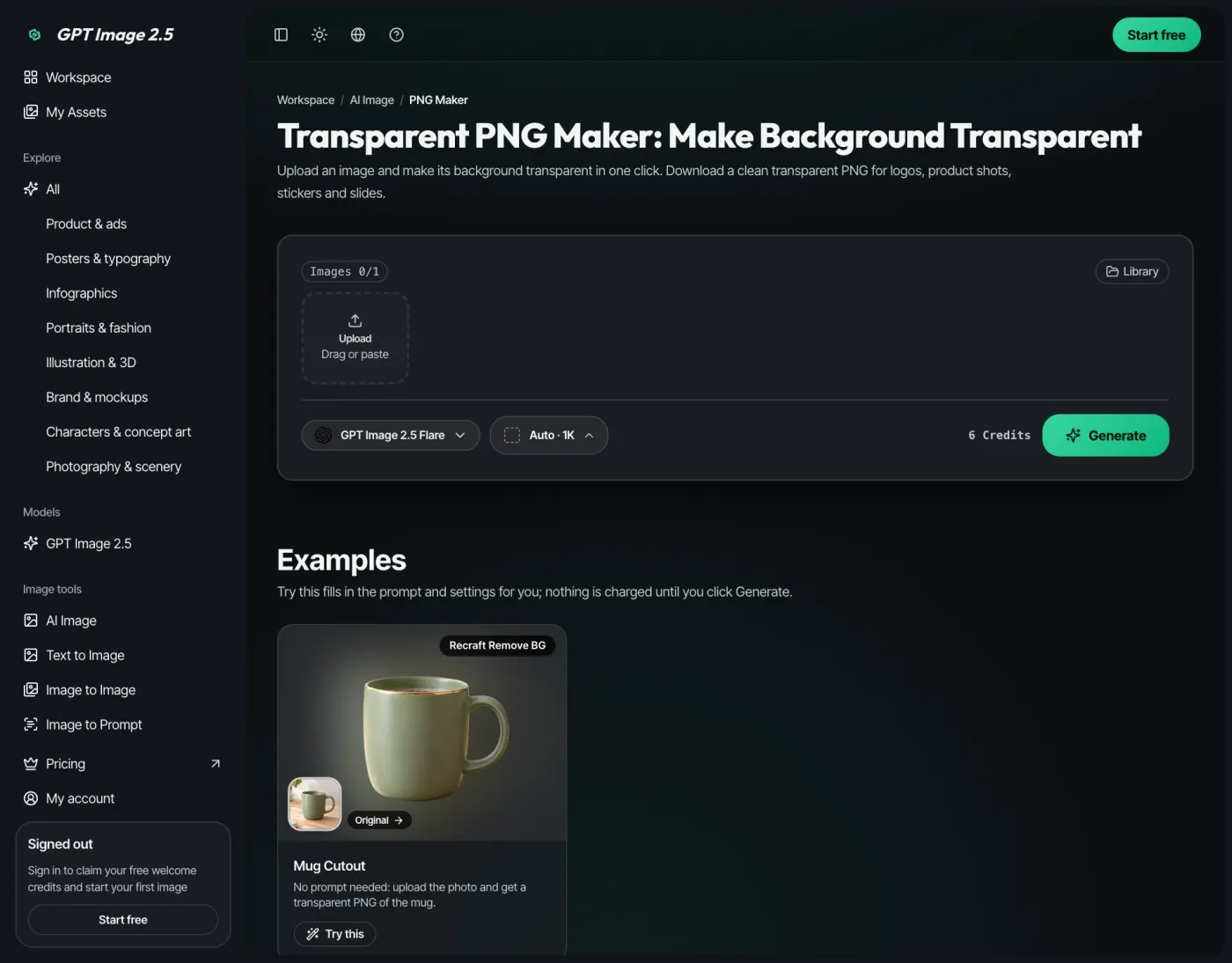
Need just the note as a cutout with no background? The PNG maker removes the background so you can drop the note onto any design. For more prompt ideas, browse the GPT Image 2.5 prompt library.
What People Use This For
- Social posts: quote cards and "note to self" posts that look like real photos
- Small business: handwritten thank-you inserts photographed with your product for listings
- Teachers & students: study notes shown in a realistic notebook for slides or posts
- Gifts & invitations: preview a handwritten card in a styled scene before printing it
FAQ
Will GPT Image 2.5 keep my handwriting exactly? Usually, especially with short notes and a clear instruction to keep the text unchanged. Always zoom in and check before you publish.
Can I do this with non-English handwriting? Yes. Our handwriting generator supports many languages, including Chinese, Japanese, Korean, and Arabic. Keep the same "do not change the text" instruction in your prompt.
Do I need a photo of real handwriting? No. The whole point of this workflow is that the note itself is generated from typed text — no pen required.
Create your note with the text to handwriting generator, then bring it to life with GPT Image 2.5.
Spremni za isprobavanje?
Pretvorite svoj tekst u prekrasan rukopis odmah. Besplatno je za pocetak!
Isprobajte odmah