How to Convert Handwritten Notes to Text (and Back to Clean Handwriting)
How to Convert Handwritten Notes to Text (and Back to Clean Handwriting)
Handwritten notes are great while you're writing them and painful afterwards. You can't search them, you can't paste them into a document, and if your writing gets messy halfway through a lecture, even you struggle to read them a week later.
The fix is a two-way workflow:
- Handwriting → text: photograph the page and let an AI OCR tool pull out the words.
- Text → handwriting: once the text is clean and edited, turn it back into neat, consistent handwriting with our text to handwriting converter.
This guide walks through both halves.
Part 1: Turn a Photo of Handwritten Notes into Editable Text
For this step we use Img2Txt, a free AI image-to-text (OCR) tool that runs in the browser. It reads printed and handwritten text, supports 100+ languages, and lets you edit the result before you copy it.
Step 1: Take a sharp photo
OCR accuracy depends far more on the photo than on the software. Before you upload:
- Shoot straight on, not at an angle — keystoned pages lose words at the edges.
- Use even light. Avoid your own shadow falling across the page.
- Crop to the text. Desk edges, fingers, and the next page all add noise.
- One page per image. Split a two-page spread into two photos.
Step 2: Upload it to the image-to-text tool
Open the Img2Txt image to text converter and drop your photo in. Screenshots, scans, whiteboard photos, and slides all work the same way. Extraction usually takes a couple of seconds.
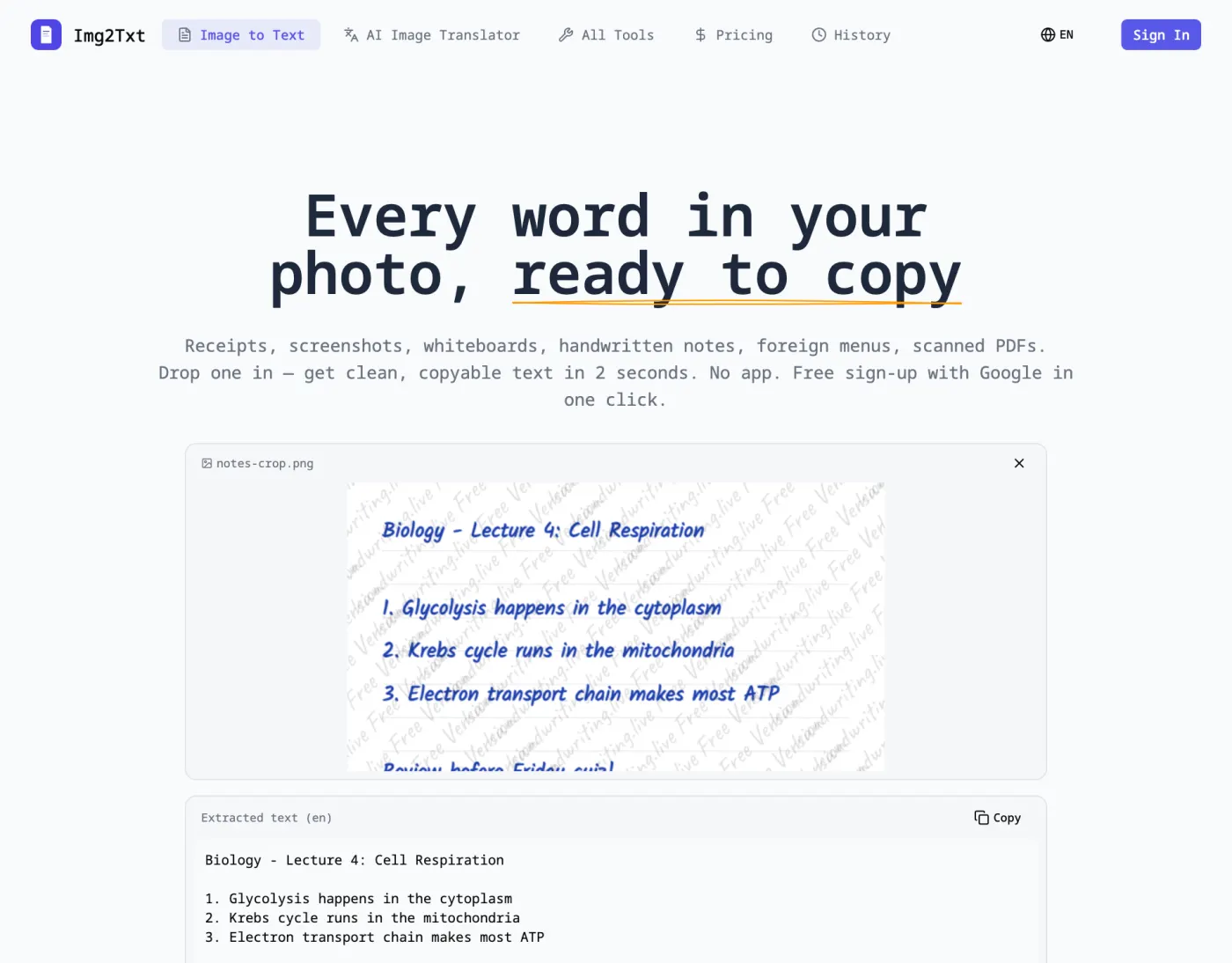
The handwritten note above was made with our own converter — Img2Txt read every line back as plain text.
Step 3: Check and fix the result
Handwriting is the hardest case for any OCR engine, so read the output once before you copy it. Typical things to look for:
- Look-alike characters:
/l
,1
/O
,0
/rnm - Words that ran into the margin or a fold
- Arrows, brackets, and diagram labels that came out of order
Fix them in the editor, then copy the text.
Tip: If one section keeps coming out wrong, crop just that section and run it again. A smaller, sharper image beats re-uploading the whole page.
Part 2: Turn the Clean Text Back into Neat Handwriting
Now you have searchable, editable text. For most uses — a Google Doc, a study app, a task list — you're done.
But sometimes you still want it to look handwritten:
- A tidy revision sheet that feels like your own notes, not a printout
- A personal letter or card where typed text feels cold
- Assignment pages or journals that ask for a handwritten look
- Sharing study notes on social media in a "notebook" style
That's where the text to handwriting generator comes in.
Step 4: Paste the text into the converter
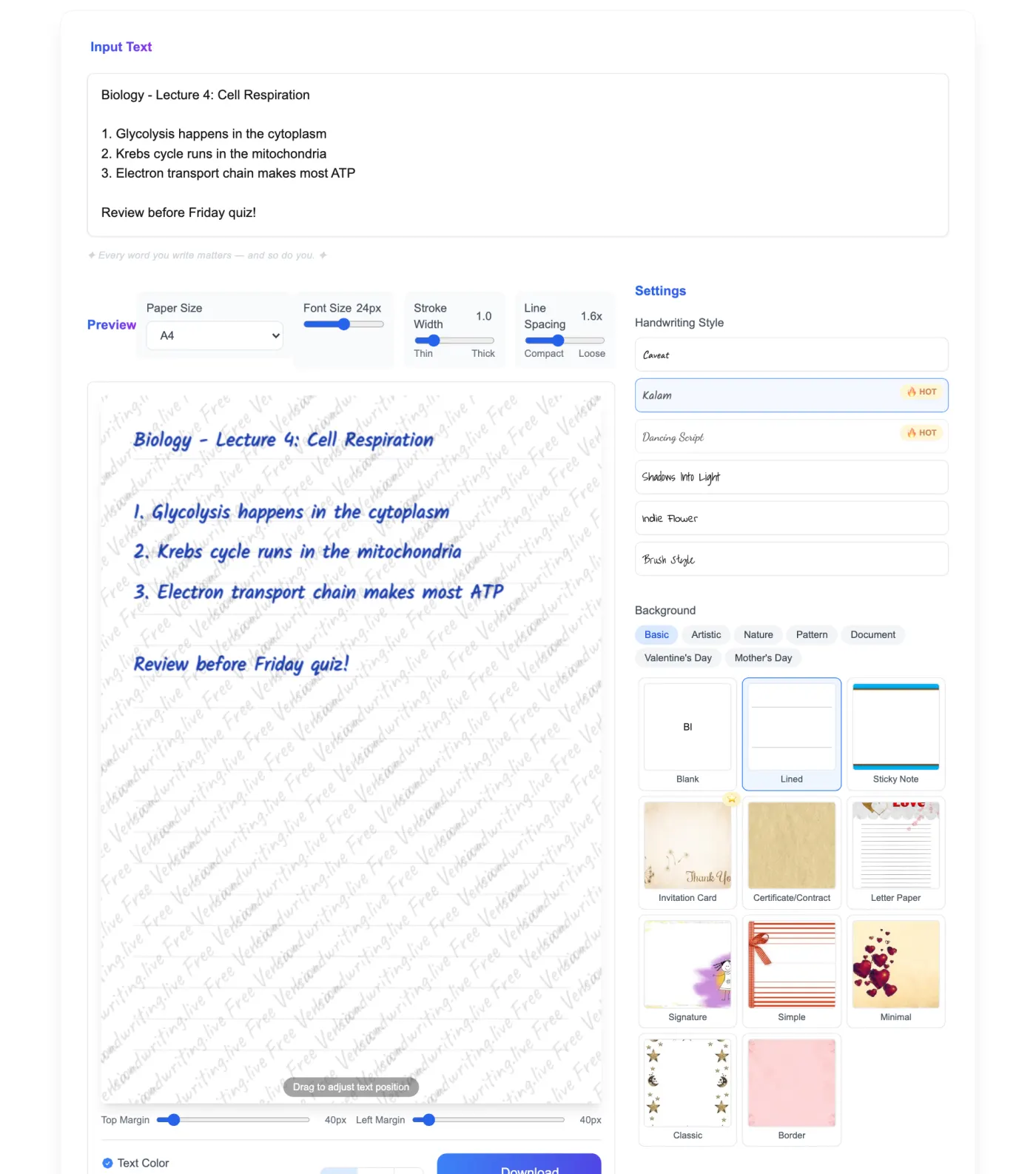
Open the handwriting converter and paste the cleaned-up text into the input box. The preview updates as you type, so you can keep editing here too.
Step 5: Pick a handwriting style and paper
- Font: choose from several handwriting styles — neat print, casual pen, or flowing cursive. If you're not sure which suits your notes, see how to choose a handwriting style.
- Paper: lined paper is the classic notebook look; blank or note-style backgrounds work for cards and letters.
- Size, stroke, and ink color: blue ink on lined paper reads as "real notebook" at a glance.
Step 6: Download
Download the result as an image and drop it into your notes app, print it, or share it. For multi-page documents, the text to handwriting PDF tool is a better fit.
A Complete Example: Messy Lecture Notes → Revision Sheet
- Photograph three pages of rushed lecture notes.
- Run each page through Img2Txt, fix the OCR slips, and paste everything into one document.
- Reorganize: merge duplicate points, add headings, cut the tangents.
- Paste the final version into the text to handwriting converter, pick a clean print style on lined paper.
- Download and print — you now have a one-page revision sheet that's easy to read and still feels hand-made.
The same loop works for meeting whiteboards, recipe cards from a relative, or old letters you want to preserve and re-share.
FAQ
Can OCR read cursive handwriting? Modern AI OCR handles a lot of cursive, but very connected or slanted writing still causes errors. Sharper photos and tighter crops help the most.
Does the text-to-handwriting step change my words? No. The converter only renders the text you give it in a handwriting font; nothing is rewritten.
Which languages are supported? Img2Txt reads 100+ languages. Our handwriting generator has handwriting fonts for many languages too, including Chinese, Japanese, Korean, and Arabic — switch the site language to see the fonts for each.
Is this the same as scanning my notes? A scan is just a picture. OCR turns that picture into real text you can search and edit — and once it's text, you can restyle it however you like.
Ready to try it? Extract text from your notes with Img2Txt, then turn it back into handwriting.
Готові спробувати?
Перетворіть свій текст на красивий рукопис прямо зараз. Це безкоштовно!
Спробувати зараз